
Hey, what answers do you need?
How to send a SMS Text using desktop app or browser
Please note that you must have a TeleCubed Advance Seat license in order to send and receive SMS/Text messages. Please contact a Telecubed Account manager for questions with your current license.
- Open the CoreNexa App on your computer or open a web browser window and go to https://voip.telecubed.com
- Log into using your credentials. If you do not remember your password, please click on the “Forgot your password” link.
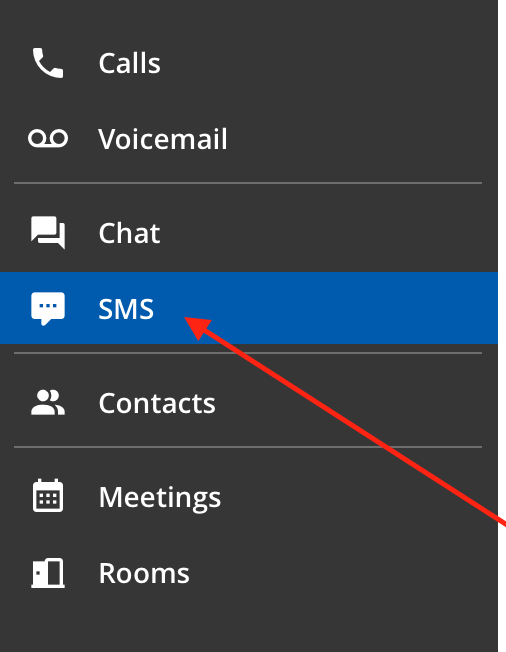
- Once you are logged in, you will see SMS located on the left hand side. Click on SMS.
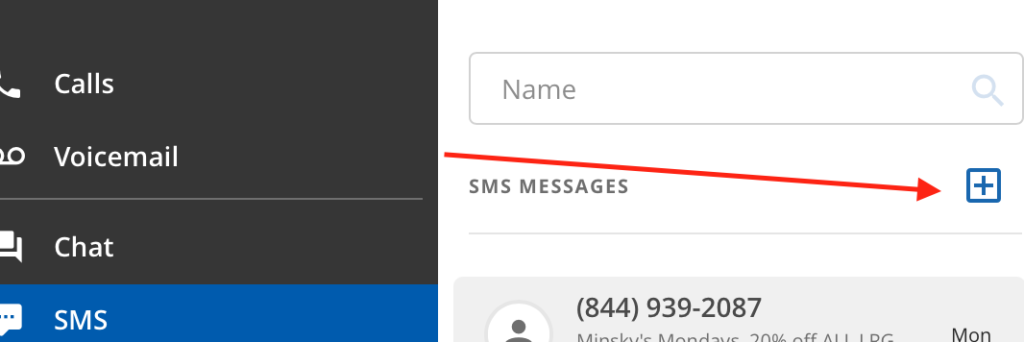
4. You are now ready to send a SMS/Text message. Locate the + button in the middle pane window. Click on the button.
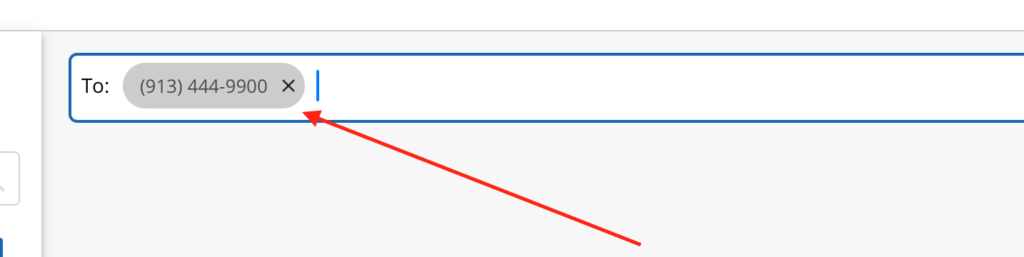
5. Your right hand window pane will now allow you to enter in the phone number of who you would like to send your SMS text to. Enter in your phone number and then press the “enter” key.
6. Now you can begin typing your message. You can type your message located on the bottom of the screen. Once you are done. Click on the green arrow button located to the right of the message box.

7. Once your message is sent, you will see your message that you just sent pop up on the message screen.
